Close Menu
    Facebook X (Twitter) Instagram
    TRENDING :
    • How to Deliver Personalized Marketing at Scale
    • Brands Like Target Are Betting on Creators With Just 500 Followers
    • How Going Live on YouTube Turns Viewers Into Loyal Customers
    • Market Talk – July 28, 2026
    • Doctors say this everyday drink could cut your dementia risk by 18%
    • Chipotle Founder Steve Ells Launches New Sandwich Concept
    • Canada’s Unique Energy Crisis | Armstrong Economics
    • Cracker Barrel CEO Stepping Down After Controversial Rebrand
    Compatriot Chronicle
    • Home
    • US Politics
    • World Politics
    • Economy
    • Business
    • Headline News
    Compatriot Chronicle
    Home»Business»6 Samsung phone features to turn on if you haven’t already
    Business

    6 Samsung phone features to turn on if you haven’t already

    June 30, 20264 Mins Read
    Share Facebook Twitter Pinterest LinkedIn Tumblr Telegram Email Copy Link
    Follow Us
    Google News Flipboard
    Share
    Facebook Twitter LinkedIn Pinterest Email


    Samsung builds fantastic phones, but the company also has a habit of shipping them with some of their absolute best features turned off by default.

    If you want to unlock the full potential of your Galaxy device, let’s take a few minutes to dive into your settings menu. There, you’ll find some incredibly cool features you should enable right away.

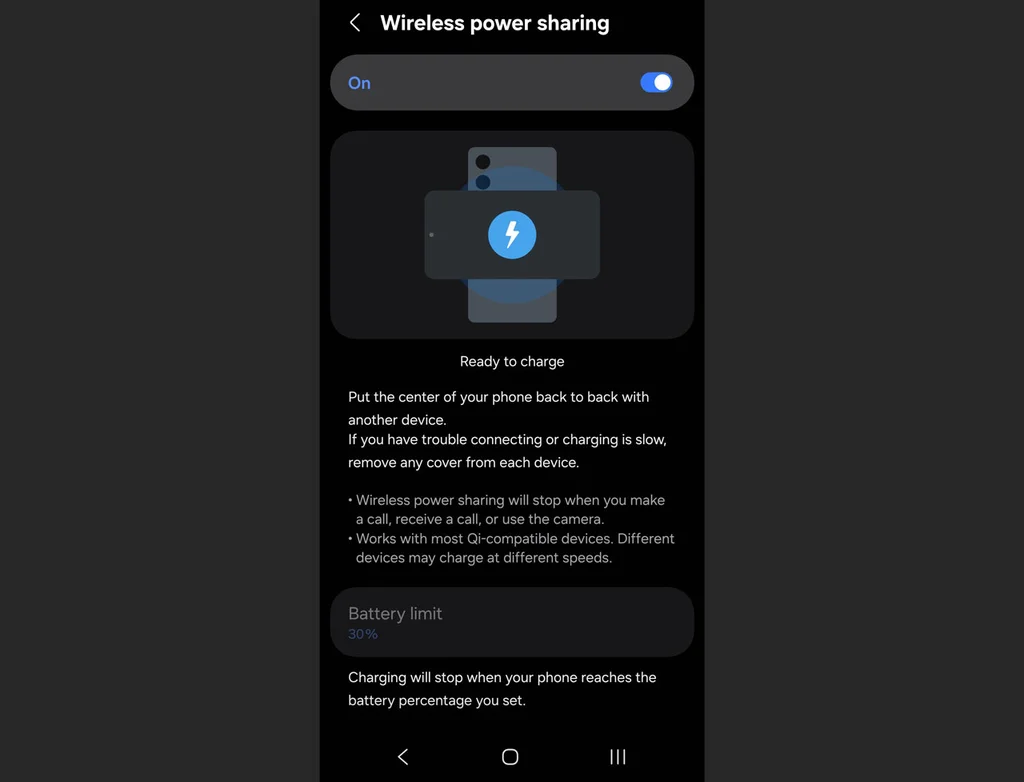
    Wireless power sharing

    Imagine your friend’s phone is dying, or your wireless earbuds completely fizzle out right before a flight. If you have a modern Galaxy phone, you’re carrying around a portable wireless charging pad in your pocket. You just have to activate it first.

    Go to Settings, scroll down to Battery, and tap Wireless Power Sharing. Toggle it to On, then flip your phone face-down and place the dying device right on its back.

    Notification history

    We’ve all done it: A notification pops up, you reflexively swipe it away to clear your screen, and a split second later you realize it was actually an important text, email, or delivery alert.
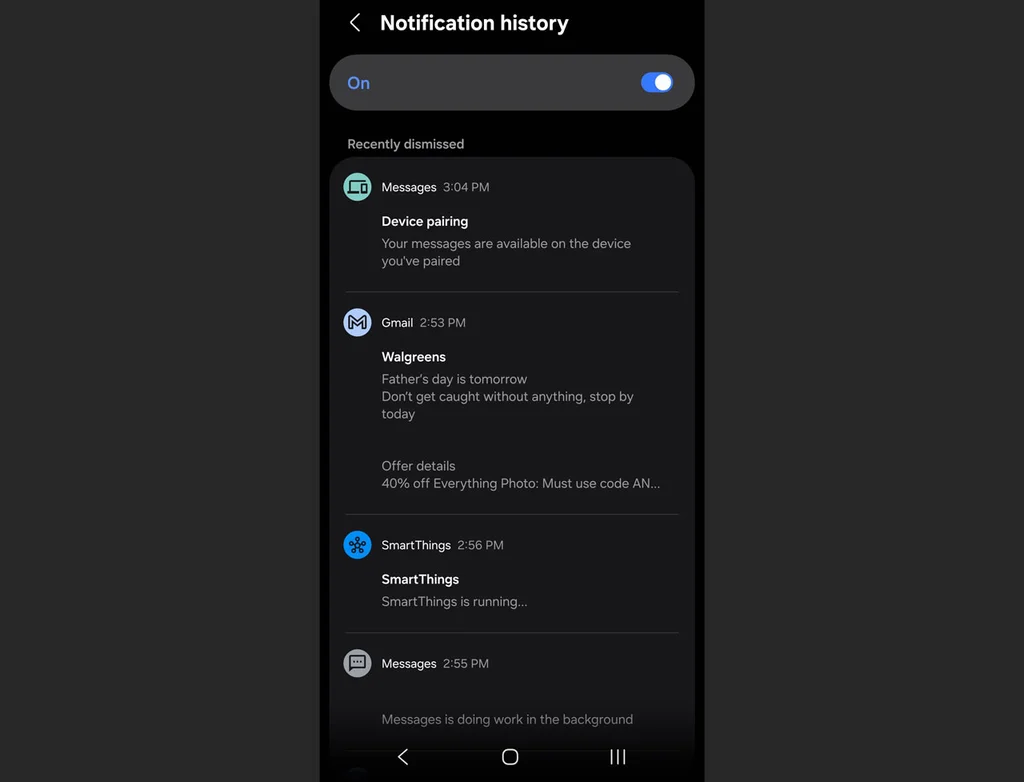
    Turning this feature on creates a digital paper trail for every single alert that hits your device. Open Settings, tap Notifications, select Advanced settings, and tap Notification history, then flip the toggle to On.

    Once enabled, this screen will keep a chronological log of every single notification you received over the past 24 hours, even the ones you accidentally dismissed. If you ever wonder what an alert said, you can just jump back in here to read it.

    Separate app sound

    If you’ve ever tried to play a podcast or music from your phone to a Bluetooth speaker only to have your audio violently interrupted by the loud chime of an incoming text message or a random game notification, this one’s for you.
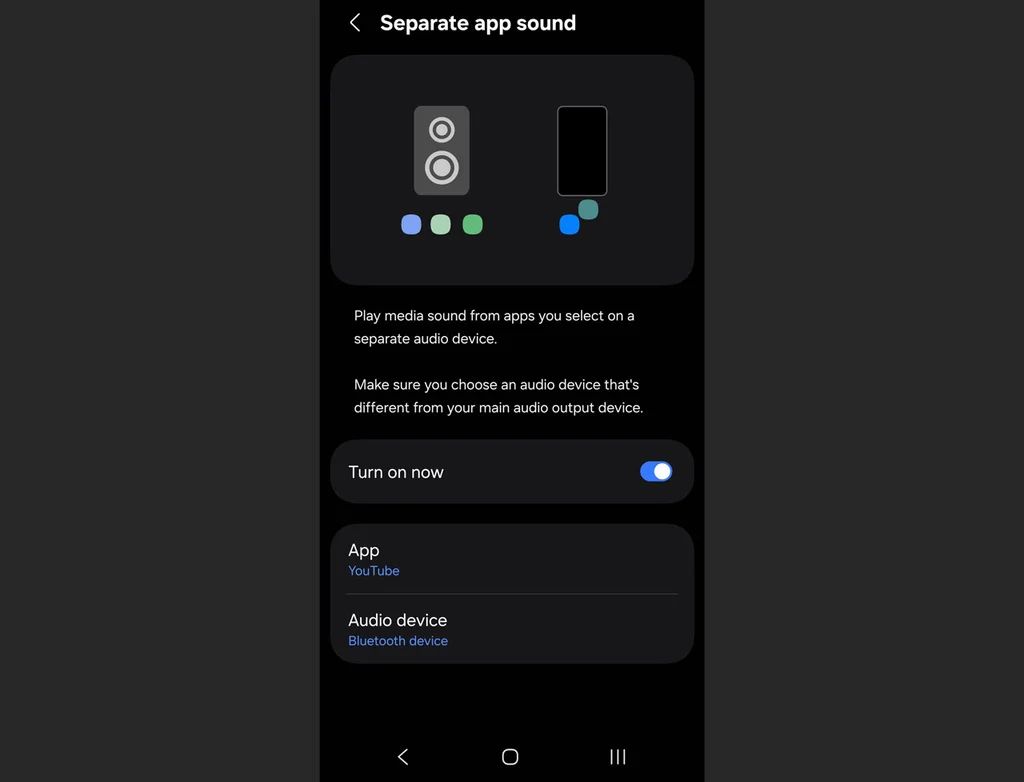
    The Separate App Sound feature isolates your audio streams so you can, for instance, set Spotify to play exclusively through your Bluetooth speaker or earbuds while your phone’s notification sounds stay local to the device’s actual speakers.

    Head over to Settings, select Sounds and vibration, scroll down to Separate app sound, and select which app you want to isolate and where you want it to play.

    Remap the power button

    Out of the box, pressing and holding the side button on a new Galaxy phone doesn’t actually bring up the power menu to turn your phone off. Instead, it launches a digital assistant.
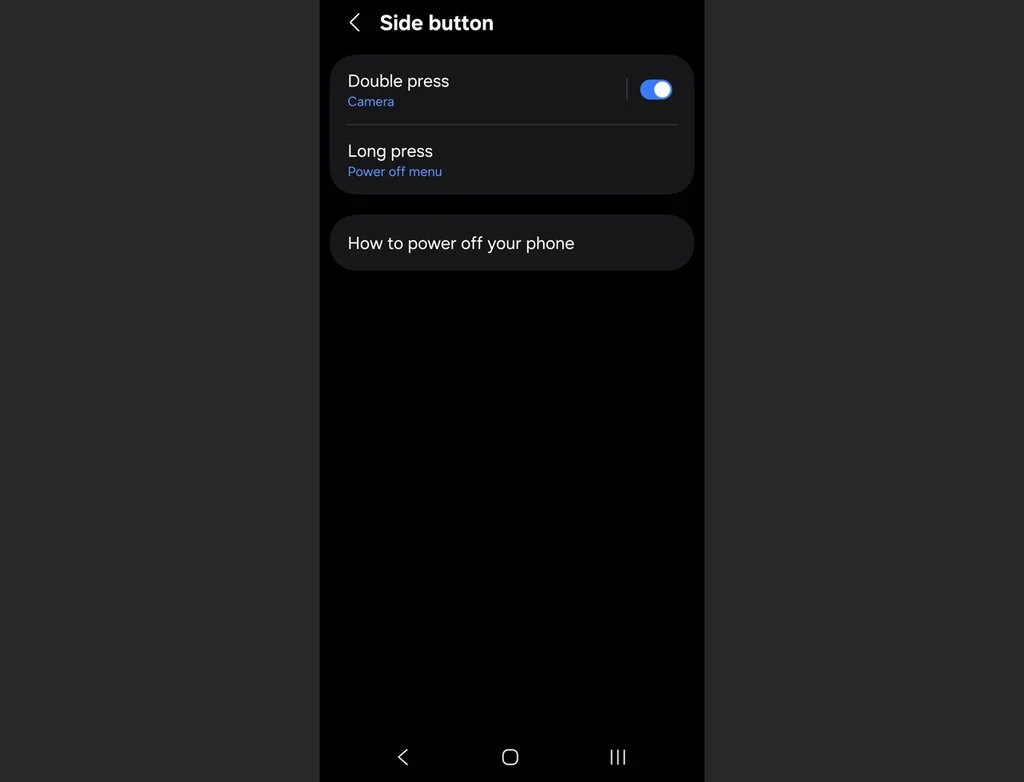
    Fortunately, you can reclaim your power button by going to Settings, tapping Advanced features, and selecting Side button. Under the “Press and hold” section, switch the setting to Power off menu.

    While you’re on this screen, you can also customize what a double-press of that same button does. By default, it opens the camera, but you can set it to instantly launch any app on your phone, such as your flashlight or mobile wallet.

    Mute with gestures

    When your phone starts blaring a loud alarm or an incoming call in the middle of a quiet room, your instinct is usually to frantically fumble with the volume rocker or slide the decline button. Samsung has a much more elegant, physical solution built right in.
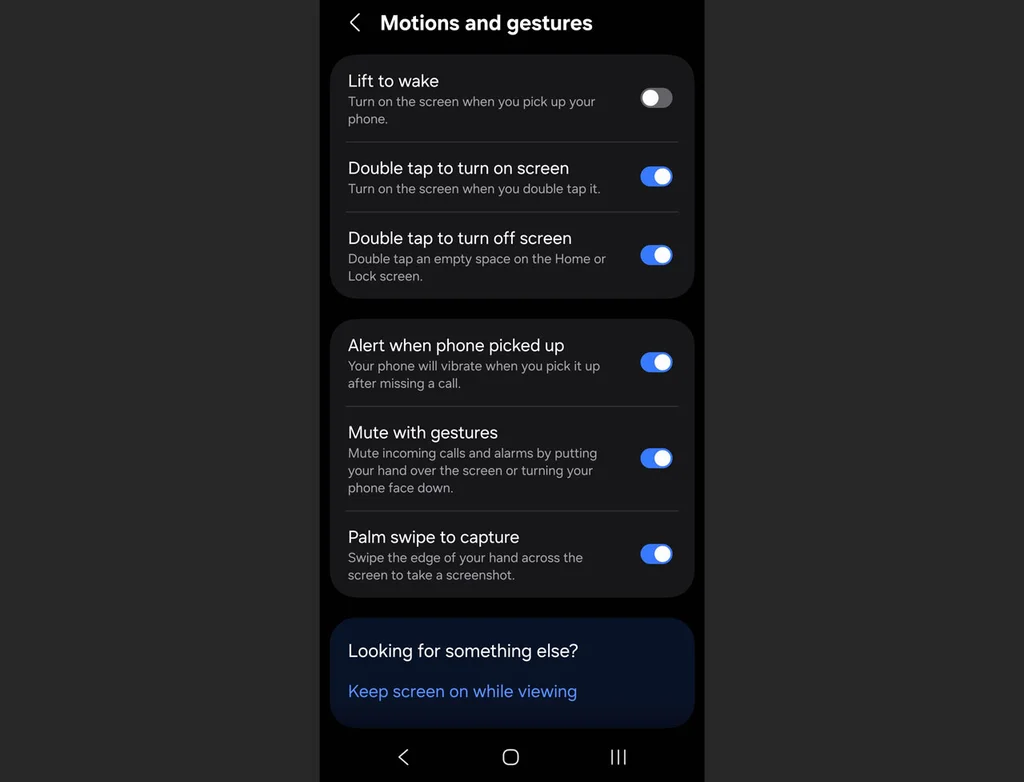
    Go to Settings > Advanced features > Motions and gestures, then activate Mute with gestures. The next time an alert goes off at the wrong moment, you can instantly silence it simply by placing your palm completely over the screen or flipping the phone face-down on a table.

    Battery protection

    Many people plug their phone into a fast charger overnight, meaning the phone hits 100% battery capacity in an hour or two and then sits there cooking under maximum electrical pressure for the rest of the night.
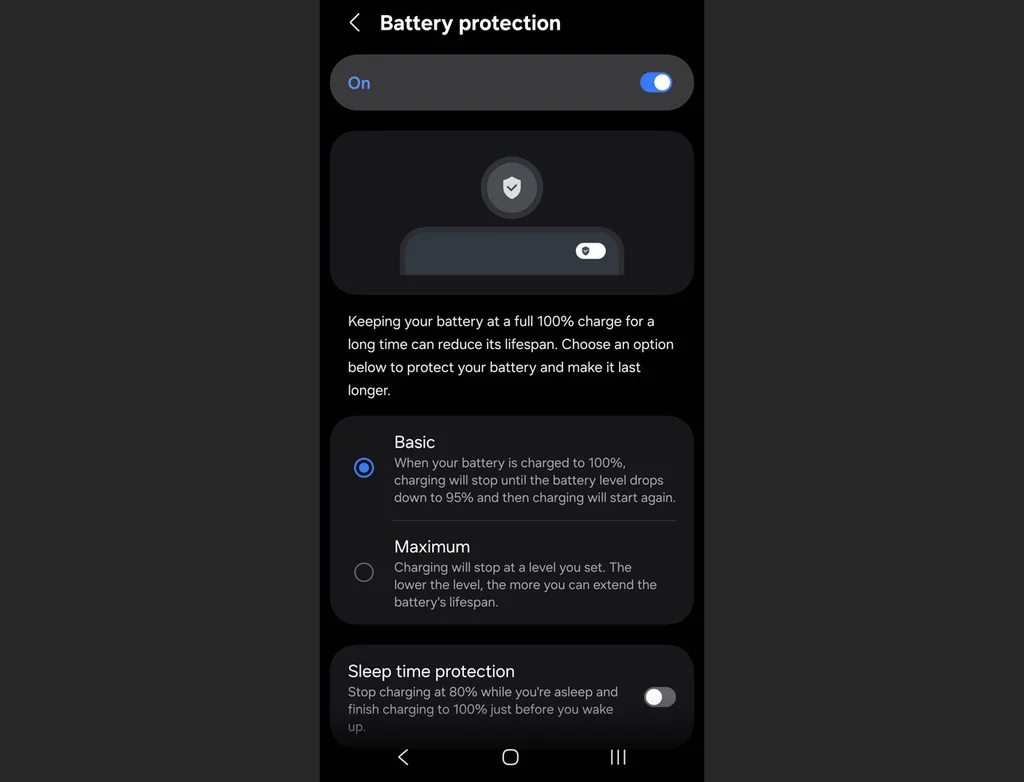
    This can degrade lithium-ion batteries rapidly, so if you plan to keep your phone for several years, you’ll want to limit that strain.

    Open Settings, go to Battery, and tap on Battery protection. Turning this on gives you a few options, including Basic or Adaptive modes, which limit the time your phone sits idling at absolute maximum charge while you sleep.


    Source link

    Share. Facebook Twitter Pinterest LinkedIn Tumblr Email

    Related Posts

    How to Deliver Personalized Marketing at Scale

    July 29, 2026

    Brands Like Target Are Betting on Creators With Just 500 Followers

    July 28, 2026

    How Going Live on YouTube Turns Viewers Into Loyal Customers

    July 28, 2026
    Top News

    How AI can help people thrive, not just be more productive

    By Staff WriterSeptember 22, 2025

    For decades, we’ve been told that technology would liberate us from mundane work, yet somehow…

    Trump’s Tariffs & The New Risk Ahead

    February 20, 2026

    The December effect: How constraints create better leadership decisions

    December 14, 2025

    Forget skincare and tequila—Novak Djokovic just joined the celebrity popcorn boom

    November 1, 2025
    Top Trending

    How to Deliver Personalized Marketing at Scale

    By Staff WriterJuly 29, 2026

    Opinions expressed by Entrepreneur contributors are their own. Key Takeaways Personalization requires…

    Brands Like Target Are Betting on Creators With Just 500 Followers

    By Staff WriterJuly 28, 2026

    Key Takeaways Major brands like Target and American Eagle are increasingly tapping…

    How Going Live on YouTube Turns Viewers Into Loyal Customers

    By Staff WriterJuly 28, 2026

    Opinions expressed by Entrepreneur contributors are their own. Key Takeaways Live streaming…

    Categories
    • Business
    • Economy
    • Headline News
    • Top News
    • US Politics
    • World Politics
    About us

    The Populist Bulletin serves as a beacon for the populist movement, which champions the interests of ordinary citizens over the agendas of the powerful and entrenched elitists. Rooted in the belief that the voices of everyday workers, families, and communities are often drowned out by powerful people and institutions, it delivers straightforward, unfiltered, compelling, relatable stories that resonate with the values of the American public.

    The Populist Bulletin was founded with a fervent commitment to inform, inspire, empower and spark meaningful conversations about the economy, business, politics, inequality, government accountability and overreach, globalization, and the preservation of American cultural heritage.

    The site offers a dynamic mix of investigative journalism, opinion editorials, and viral content that amplify populist sentiments and deliver stories that echo the concerns of everyday Americans while boldly challenging mainstream narratives that serve the privileged few.

    Top Picks

    How to Deliver Personalized Marketing at Scale

    July 29, 2026

    Brands Like Target Are Betting on Creators With Just 500 Followers

    July 28, 2026

    How Going Live on YouTube Turns Viewers Into Loyal Customers

    July 28, 2026
    Categories
    • Business
    • Economy
    • Headline News
    • Top News
    • US Politics
    • World Politics
    Copyright © 2025 Populist Bulletin. All Rights Reserved.

    Type above and press Enter to search. Press Esc to cancel.