

Two months ago, Apple released iOS 26 for the iPhone. The new operating system includes several productivity and other enhancements, but the main feature is a new design language called Liquid Glass. The flat, minimalist look of iOS that lasted for more than a decade is gone, replaced by a transparent interface of toolbars and buttons that mimic how light bends and warps as it passes through glass.
Those who appreciate the new look of iOS often praise Liquid Glass as refreshing and unique, saying it gives the iPhone’s software a sense of fluidity that other touch interfaces lack. Others argue that Liquid Glass’s transparent elements make the device harder to use, as the content behind iOS 26’s buttons and toolbars often obscures the symbols or text that label the interface elements.
If you fall into the latter group, there’s some good news. Apple is increasingly providing options to tone down the most controversial aspects of the Liquid Glass design. Here they are:
Option #1: Turn on the tint
This week, Apple released its first major update to iOS 26: iOS 26.1. This update fixed numerous bugs while also adding new features; it expanded Apple Intelligence and AirPods Live Translation features to new countries, added new swipe controls to the Music app, and overhauled the alarm clock interface so you don’t accidentally tap “snooze” and miss your meeting.
But as Fast Company previously reported, iOS 26.1’s best new feature is a toggle that lets users tone down Liquid Glass’s design. It does this by allowing users to choose between two different Liquid Glass interfaces.
The “Clear” interface is the default Liquid Glass, with interface element transparency at a maximum.
The “Tinted” interface option reduces this default transparency to give Liquid Glass elements a more frosted look. This can greatly improve the readability of button and toolbar labels by increasing their contrast.
Turning on the Liquid Glass tint is easy, as long as you have iOS 26.1 installed on your iPhone:
- Open the Settings app.
- Tap Display and Brightness.
- Tap Liquid Glass.
- Tap the “Tinted” option.
As you can see from the screenshots above, the “tinted” Liquid Glass option brings a frosted look (right) to the default transparency (left).
Option #2: Increase the contrast
If you’re still on iOS 26.0 or just want to eliminate the default look of Liquid Glass even more on your iPhone that’s running iOS 26.1, you can tone down Liquid Glass in three other ways.
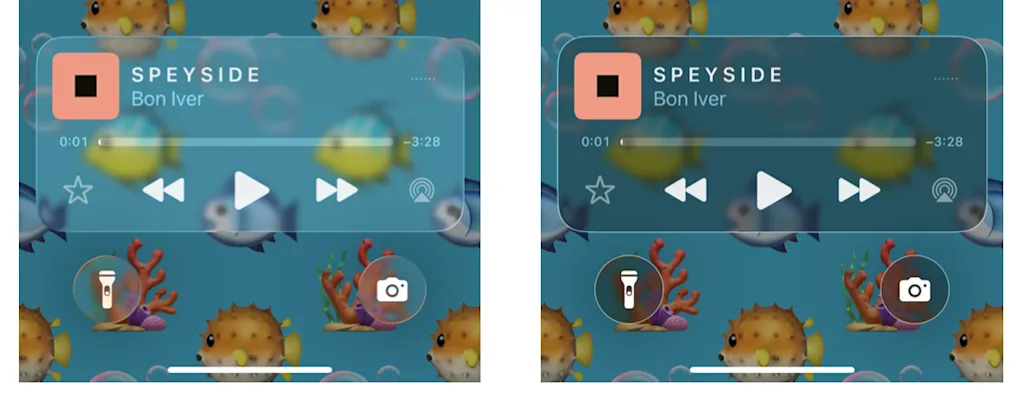
The first is by enabling the “Increase Contrast” Accessibility option on your iPhone. This feature is designed for users with sight issues, but anyone can enable it, and many have found that doing so makes Liquid Glass more palatable.
As Apple notes, enabling this setting helps “Increase color contrast between app foreground and background colors.” Here’s how you turn it on:
- Open the Settings app.
- Tap Accessibility.
- Tap Display & Text Size.
- Toggle the “Increase Contrast” switch to ON (green).
As you can see in the screenshots above, enabling the “Increase Contrast” option (right) adds a slight outline around interface borders and adds a grey smokiness to transparent elements, which makes text and buttons easier to see than they are in the default Liquid Glass design (left).
Option #3: Reduce the transparency
A third way to tone down Liquid Glass is to enable another Accessibility option on your iPhone called “Reduce Transparency.”
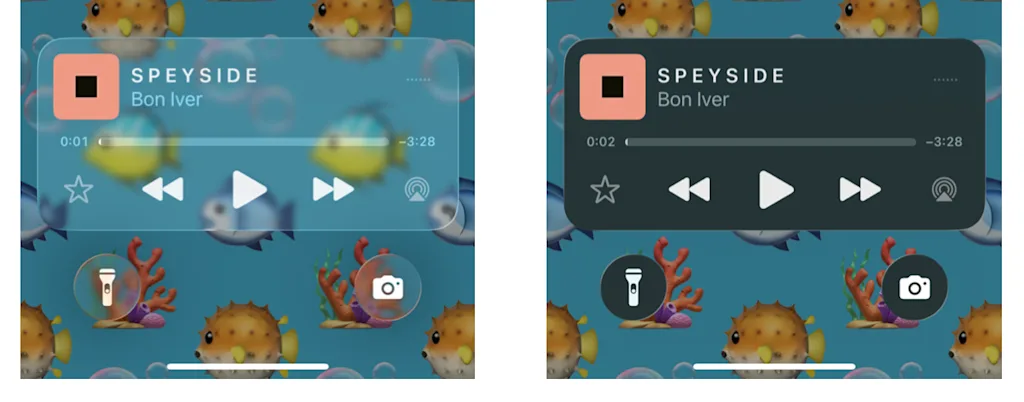
This option tones Liquid Glass down even further than the “Increase Contrast” option, greatly reducing its transparency. As Apple notes, this option helps “Improve contrast by reducing transparency and blurs on some backgrounds to increase legibility.”
To enable the setting:
- Open the Settings app.
- Tap Accessibility.
- Tap Display & Text Size.
- Toggle the “Reduce Transparency” switch to ON (green).
As you can see in the screenshot above, enabling the “Reduce Transparency” option (right) virtually blocks any background content from bleeding through buttons and toolbar elements.
Option #4: Outline buttons for easier visibility
A final way to tone down Liquid Glass is to force iOS 26.1 to show borders around buttons and other UI elements. This is done via the “Show Borders” Accessibility option.

This option forces outlines to appear around “prominent UI,” according to Apple’s iOS 26.1 notes.
To enable the setting:
- Open the Settings app.
- Tap Accessibility.
- Tap Display & Text Size.
- Toggle the “Show Borders” switch to ON (green).
As you can see in the screenshot above, enabling this option displays a thin outline around buttons and other UI elements, helping them stand out more on your screen.
Liquid Glass isn’t going away
The new look of iOS 26 isn’t temporary—nor should it be. While there have been some vocal detractors to the new design, a large majority of iPhone users seem to love the refreshed look. After Apple spent years developing that new design, there’s no way they would go back to the old one.
But Apple’s addition of a new “tint” option for Liquid Glass via a dedicated control in the iOS 26.1 Settings app shows that the company is listening to feedback from all its users and is not averse to giving individuals more control over how Liquid Glass looks to them. So, while you may not be able to turn off Liquid Glass, you now at least have three ways to tone it down.